
Imagine opening your favorite social media application to search for a used bicycle, a piece of vintage furniture, or local services in your neighborhood, only to find that the shopping tab has completely vanished from your screen. For millions of everyday users, this is a frustrating yet surprisingly common occurrence that disrupts daily routines. Facebook Marketplace is an essential hub for community-based buying and selling, but it is still subject to technical glitches, region-specific restrictions, and sudden account flags. If you currently find your facebook marketplace not working as it normally should, it is important to remember that most causes are simple to diagnose and resolve. The issue might stem from a temporary app bug, a conflict in your settings, or eligibility issues. Let us explore the common reasons why this happens and look at the practical ways you can restore access.
Understanding Why the Marketplace Disappears
When the Marketplace icon or page refuses to load, it is usually due to one of three main categories: app-related technical bugs, account eligibility rules, or policy-related access restrictions. Technical bugs are the most frequent culprit. The Facebook app stores a large amount of temporary data, known as cache, to help load pages faster. Over time, these files can become corrupted, resulting in broken links or missing menu options. Similarly, running an outdated version of the app can cause compatibility issues with Facebook’s backend servers, hiding the tab entirely.
Eligibility requirements are another common factor. Facebook restricts Marketplace access to profiles that are registered as being at least 18 years old. Additionally, the service is only available in specific supported countries and territories. If your account profile does not specify an age, or if your primary location settings are misconfigured, the platform may hide the Marketplace to maintain compliance with local regulations. New accounts might also experience a probationary period where the shopping icon remains unavailable until the profile demonstrates normal platform activity.
Lastly, account compliance plays a role. If a listing you posted is flagged for violating commerce policies—even if it was an honest mistake, like listing an item containing a restricted keyword—your access might be temporarily or permanently suspended. Understanding these basic causes is the first step toward troubleshooting the issue effectively.
Step-by-Step Troubleshooting Guide
If you are trying to restore your access, start with the easiest technical remedies first before checking account settings or submitting appeals. Follow these practical steps to get the platform loading correctly again.
First, clear the application cache. If you are using an Android device, navigate to your phone settings, select apps, find Facebook, and tap clear cache. For iOS users, you can offload the app or perform a clean reinstall to achieve the same result. If you are accessing the platform via a desktop browser, clear your browser cookies and history, or try opening the site in a private window to see if the issue persists.
Second, update your application. Visit the Google Play Store or Apple App Store and search for Facebook. If an update is available, download it immediately. Keeping your software updated ensures that you have the latest bug fixes and security patches that might address display errors.
Third, verify your profile details. Go to your about section and check your date of birth to ensure it shows you are over 18. Additionally, confirm that your current city and region settings are set to a supported geographic location. If you recently traveled or changed your location settings, this might have triggered a temporary access block.
A Quick Troubleshooting Checklist
Before moving on to official support, use this quick checklist to rule out simple issues:
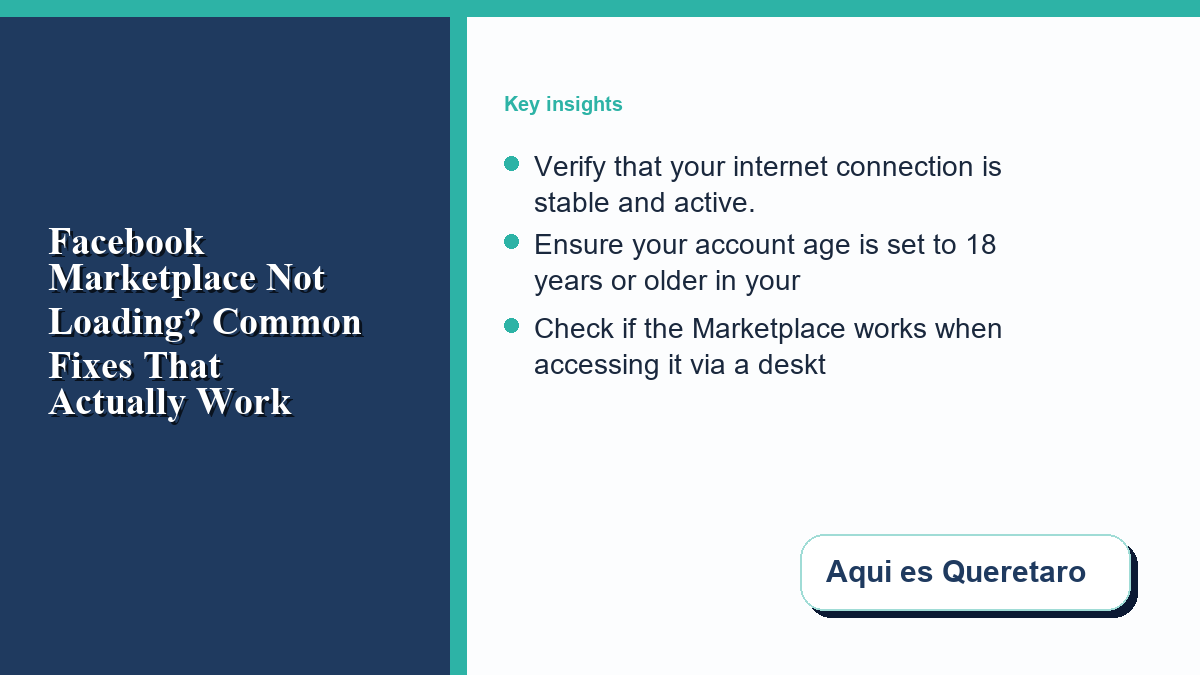
- Verify that your internet connection is stable and active.
- Ensure your account age is set to 18 years or older in your profile settings.
- Check if the Marketplace works when accessing it via a desktop web browser.
- Confirm that you are located in a region where Facebook Marketplace is supported.
- Review your support inbox to check if you have received any policy violation notices.
Frequently Asked Questions
Why did the Marketplace icon disappear from my shortcut bar?
Facebook utilizes a dynamic shortcut bar that changes based on your usage patterns. If you have not visited the Marketplace recently, the icon might be replaced by other features. You can manually customize your navigation bar settings in the app to pin the Marketplace icon permanently.
How long does it take for a support appeal to be reviewed?
When you submit an appeal regarding restricted access, the review process typically takes between 24 and 72 hours. You will receive a notification in your support inbox once a decision has been reached by the moderation team.
Can I use Marketplace with a new account?
Newly created profiles often experience a delay before gaining access to the platform. This measure is implemented to prevent spam and fraudulent activity. Engaging actively with other platform features can help speed up the process.
Disclaimer: The information provided in this troubleshooting guide is for general informational purposes only. We are not affiliated with Facebook, and we cannot guarantee that these steps will restore your specific account access. For official account support and policy queries, please consult the official Facebook Help Center.



0 Comments